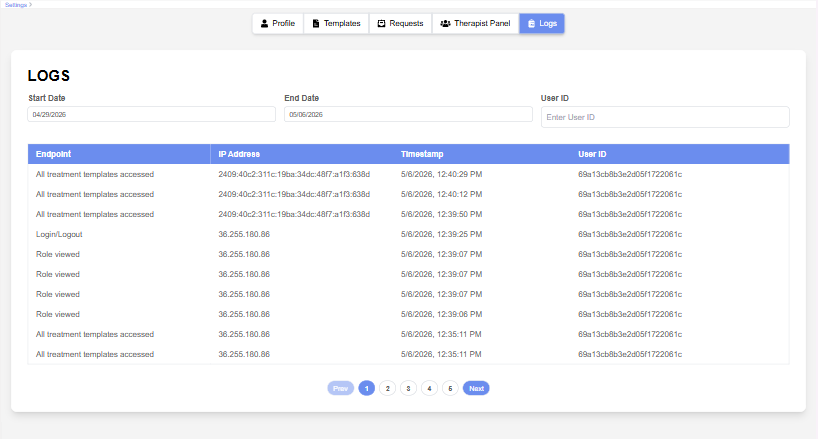
The Logs page provides a centralized view of system activity and user actions performed within the application.
This page helps users monitor activity records, track user interactions, and review system events in a structured table format.
Initial State #
When the Logs page is loaded:
- The system automatically displays logs from the last 7 days
- The logs are displayed in descending order based on timestamp
- A loading state is shown while log data is being fetched
This provides immediate visibility into recent system activity.
Filter Section #
The top section includes filtering options for narrowing and searching log records.
Available Filters: #
- Start Date
- End Date
- User ID
Features: #
- Calendar-based date pickers for selecting custom date ranges
- User ID search input field
- Auto-suggestion dropdown for matching user IDs
- Dynamic filtering based on selected filters
Behavior: #
- Logs update dynamically when filters are changed
- The selected date range controls which logs are displayed
- User-specific logs are displayed when a User ID is selected
This section helps users efficiently search, filter, and analyze activity records within the system.
Logs Table #
The Logs table displays activity records in a structured format.
Columns Displayed: #
- Endpoint / Action
- IP Address
- Timestamp
- User ID
Behavior: #
- Logs are sorted by latest activity first
- Long text values are truncated for better readability
- Displays “No data found” when no logs are available
This section provides a clear overview of system activities.