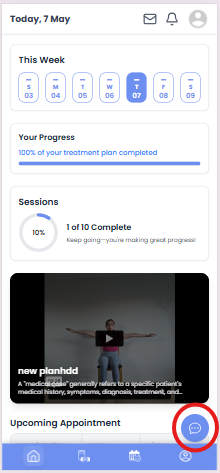
The Dashboard page is displayed after the patient logs into the system. This page serves as the central overview of treatment progress, session tracking, appointments, and weekly exercise activity.
It provides a real-time summary of important treatment-related information, helping patients monitor their recovery journey and stay connected with their therapist.
Initial State #
When the dashboard loads, the system performs multiple backend API calls to fetch dashboard-related information.
Fetched Data Includes:
- Dashboard analytics and treatment data
- Patient profile information
- Therapist assignment details
- Current week exercise plan
- Upcoming appointments
- Chat messages Button
Profile Completion Popup #
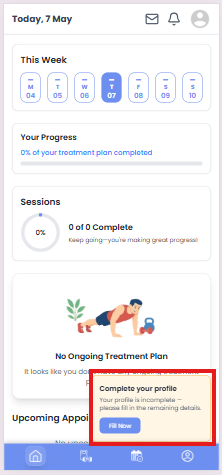
The system checks whether the patient profile is incomplete.
Behavior:
- If profile data is incomplete:
- A profile completion popup is displayed
- User is prompted to complete remaining profile information
- “Fill Now” button redirects to Patient Profile page
Therapist Assignment Check #
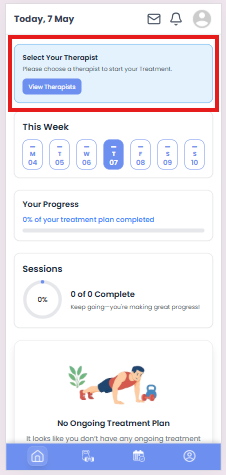
The system checks whether the patient has an assigned therapist.
Behavior:
- If no therapist is assigned:
- A therapist selection card is displayed
- User is prompted to select a therapist
- “View Therapists” button redirects to therapist listing page
This ensures patients can begin treatment only after selecting a therapist.
Weekly Exercise Section #
The dashboard includes a “This Week” section that displays weekly treatment activity.
Features:
- Displays all 7 days of the current week
- Highlights the current day
- Shows daily exercise completion status
Status Indicators:
- ✓ → All exercises completed
- – → No exercises completed
If no active treatment plan exists, predefined weekly placeholder data is displayed.
Treatment Progress Section #
The dashboard displays overall treatment progress using a progress bar.
Displayed Information:
- Percentage of treatment completed
- Dynamic progress bar visualization
Sessions Progress Section #
The Sessions section visually represents completed therapy appointment sessions.
Displayed Information:
- Completed sessions count
- Total sessions count
- Circular progress indicator
- Completion percentage
Ongoing Treatment Plan Section #
The dashboard displays the currently active treatment plan.
Displayed Information:
- Treatment plan title
- Treatment plan description
- Thumbnail or Vimeo video preview
Supported Media Types:
- Image thumbnails
- Vimeo embedded videos
Behavior:
- Clicking the treatment card redirects the user to the Treatment Plan page
- If no treatment plan exists, an empty state card is displayed
This helps patients quickly access their current treatment activities.
Upcoming Appointments Section #
The dashboard displays upcoming scheduled appointments in tabular format.
Displayed Information:
- Meeting title
- Appointment date
- Appointment time range
Features:
- Automatically formats date and time
- Displays all upcoming meetings
- Shows empty state message if no appointments exist
This allows patients to easily track their future therapy sessions.
Chat Button #
A floating chat button is displayed when the patient has an assigned therapist.
Features:
- Redirects user to chat page
- Displays unread message badge count
- Automatically resets unread count after opening chat
Behavior:
- Chat button is hidden if no therapist is assigned
- Badge count shows unread therapist messages
This enables direct communication between patient and therapist