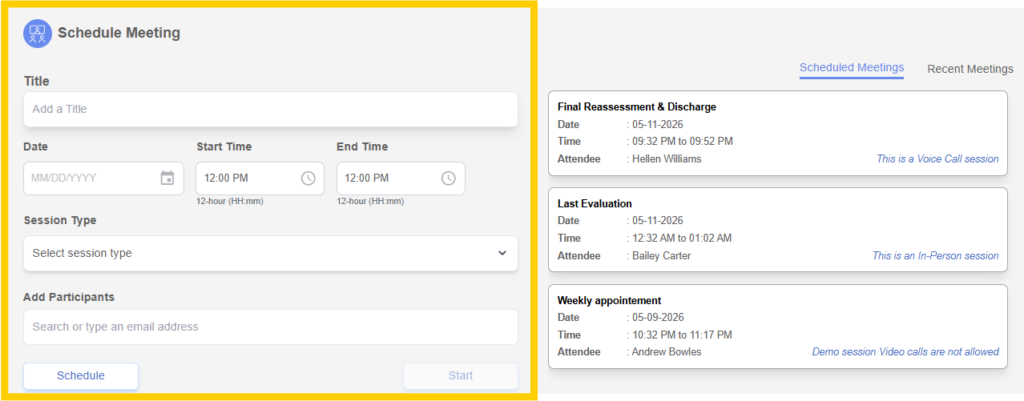
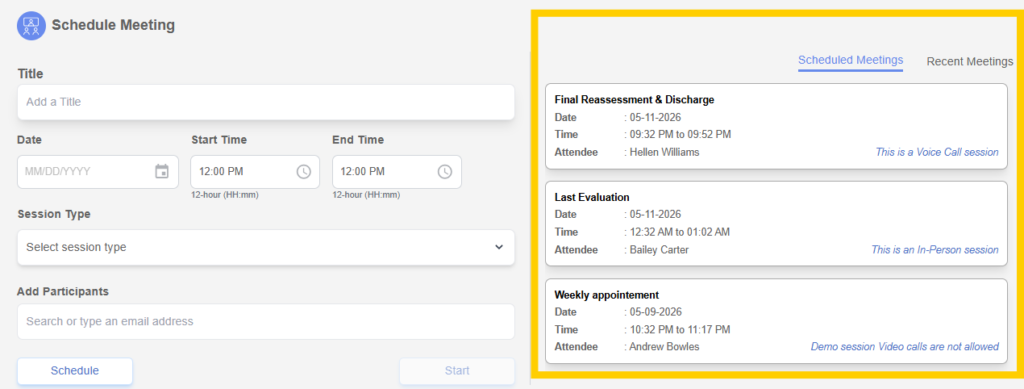
The Schedule Meeting page is used to create and manage sessions between therapists and patients. This page is divided into two main sections. The left side contains the meeting creation form where users enter session details, and the right side displays scheduled and recent meetings for quick reference.
Overview of the Form #
The form allows users to define all necessary details required to schedule a session. Each field plays a specific role in ensuring the meeting is properly organized and recorded in the system.
- Title
This field is used to enter the name of the meeting. It should clearly describe the purpose of the session so it can be easily identified later. For example, users can enter titles such as “Initial Consultation” or “Therapy Session – Week 1”. - Date
The date field allows users to select the day on which the meeting will take place. It uses a standard date picker format (MM/DD/YYYY). Users should ensure the correct date is selected to avoid scheduling conflicts. - Start Time and End Time
These fields define the duration of the meeting. The time is entered in a 12-hour format (HH:mm). The start time indicates when the session begins, and the end time indicates when it concludes. It is important that the end time is later than the start time to maintain logical scheduling. - Session Type
This is a dropdown field where users select the type of session being scheduled. It helps categorize meetings within the system. Common examples include videocall, audio call, In-person meet. - Add Participants
This field allows users to add participants to the meeting by entering or searching for their email addresses. It may provide suggestions based on existing users in the system. Participants can include patient one at a time. - Schedule Button
This button is used to schedule the meeting for a future time. Once clicked, the meeting is saved and will appear under the scheduled meetings section. - Start Button
This button allows users to start the meeting immediately. It is typically enabled only when all required fields are filled correctly.
Right Panel Information #
- Scheduled Meetings Tab
This section displays all upcoming meetings that have been scheduled. - Recent Meetings Tab
This section lists previously completed or past meetings. It helps users keep track of session history.
Summary #
To schedule a meeting, the user needs to enter a title, select the date, define the start and end time, choose the session type, add participants, and then click the schedule button. Once completed, the meeting will be visible in the scheduled meetings section for future reference.