The Calendar page provides a visual representation of all scheduled sessions. It allows users to view, create, and manage meetings in a structured calendar format. This page helps in tracking sessions across dates and understanding availability at a glance.
Overview #
The calendar is displayed in a monthly view by default, showing all days along with scheduled meetings. Each meeting appears as a colored block within the respective date. Users can navigate between months and interact with different scheduling options from the top panel.
Scheduling a Meeting from Calendar #
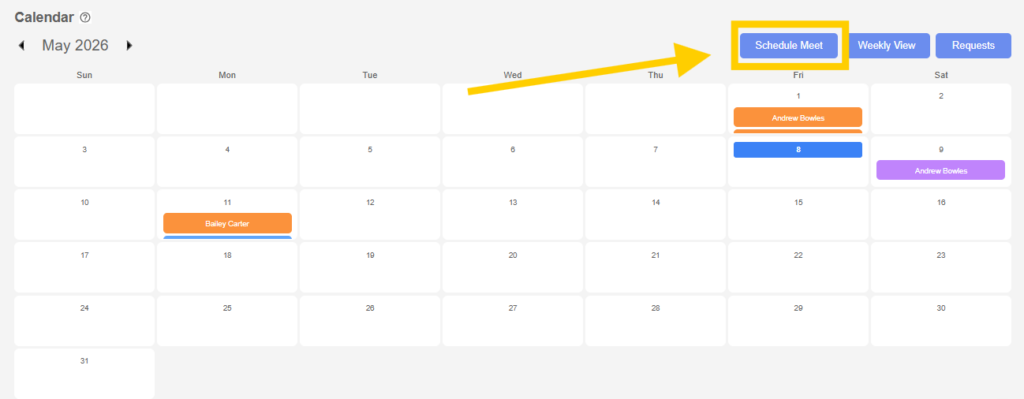
- Users can schedule a meeting directly from the Calendar page by clicking on the Schedule Meet button.
- On clicking this button, a modal window opens where meeting details must be entered.
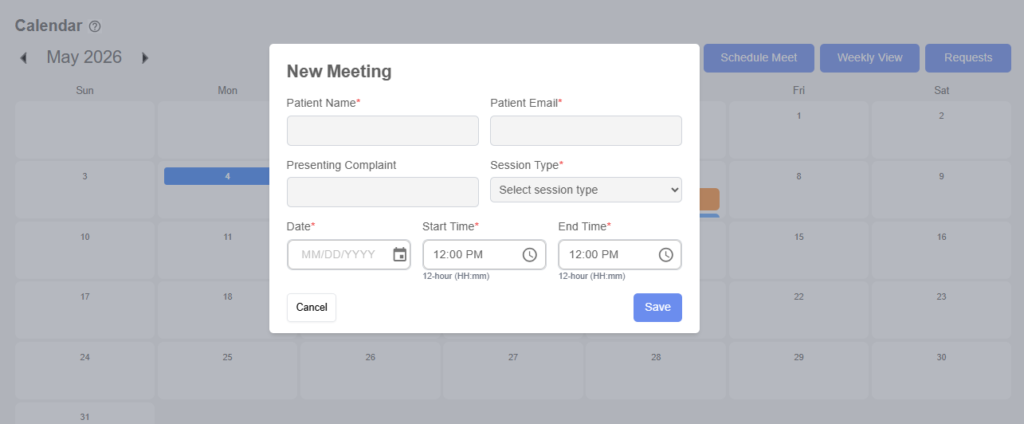
- After entering all required details, clicking the Save button schedules the meeting and it will appear on the calendar under the selected date.
Calendar Views #
- Monthly View
This is the default view where all days of the selected month are displayed. Meetings are shown on their respective dates. - Weekly View
Users can switch to weekly view using the “Weekly View” option. This provides a more detailed breakdown of meetings within a specific week and time period, making it easier to manage multiple sessions in a shorter time frame.
Requests Section #
- The Requests section contains meeting requests initiated by patients.
- Users can review these requests and take appropriate actions:
- Accept the request, which schedules the meeting
- Reject the request, which declines it
- This feature ensures controlled approval of patient-initiated sessions.
Meeting Color Indication #
- Each meeting displayed on the calendar is color-coded based on the session type.
- A legend is provided on the page to explain the color mapping. Common examples include:
- Video Call
- Voice Call
- In-Person
- This color differentiation helps users quickly identify the type of session without opening each meeting.
Summary #
The Calendar page acts as a centralized view for all sessions. Users can schedule meetings through the modal, switch between monthly and weekly views for better visibility, manage patient requests, and identify session types using color-coded indicators.