The Patient Overview page is displayed after selecting a patient from the patient list. This page serves as the central dashboard for all patient-related information, including medical progress, session history, and activity insights.
Initial State After Patient Creation #
When a new patient is added using the patient form, the overview page does not immediately display full dashboard data. Instead, the system shows three informational cards prompting the user to complete required details.
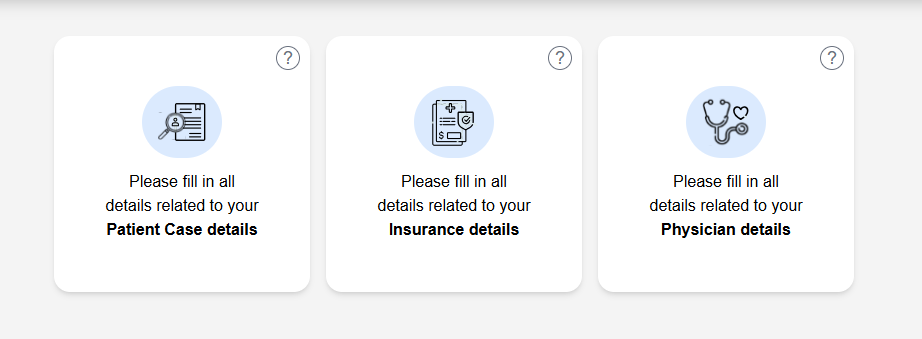
- Patient Case Details
- Insurance Details
- Physician Details
Each card indicates that the corresponding information must be filled before accessing the full dashboard. This ensures that all critical patient data is available for accurate tracking and reporting.
Until at least one of these forms is completed, the dashboard view with charts and session data will not be fully enabled.
Patient Information Header #
At the top of the page, basic patient details are displayed, including:

- Patient name and profile image
- Age and gender
- Unique patient ID
- Occupation
This section provides a quick summary for identification.
Quick Actions #

The top-right section includes action buttons:
- Add Record
Used to add clinical or session-related records for the patient. - Add Note
Used to add notes related to patient progress or observations. - Chat
Allows communication with the patient directly through the system.
Dashboard Components (After Required Details Are Filled) #
Once the necessary patient information is completed, the full dashboard becomes visible. It includes the following sections:

- Presenting Complaint
Displays the primary issue or condition reported by the patient. - Treatment Progress
Shows overall progress as a percentage, helping track recovery status. - Sessions Completed
Indicates the number of sessions completed along with any remaining sessions. - Last Session On
Displays the date of the most recent session.
Appointments Section #
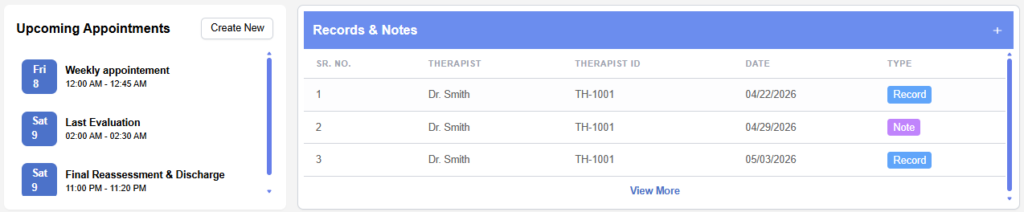
- Displays upcoming scheduled sessions for the patient.
- Includes session titles, dates, and time ranges.
- A “Create New” option is available to schedule additional appointments.
Records and Notes #
- Displays a list of records and notes added for the patient.
- Includes therapist name, therapist ID, date, and type (record or note).
- A “View More” option allows access to additional entries from total separate page of records and notes.
Analytical Charts #
The dashboard provides visual insights into patient progress:
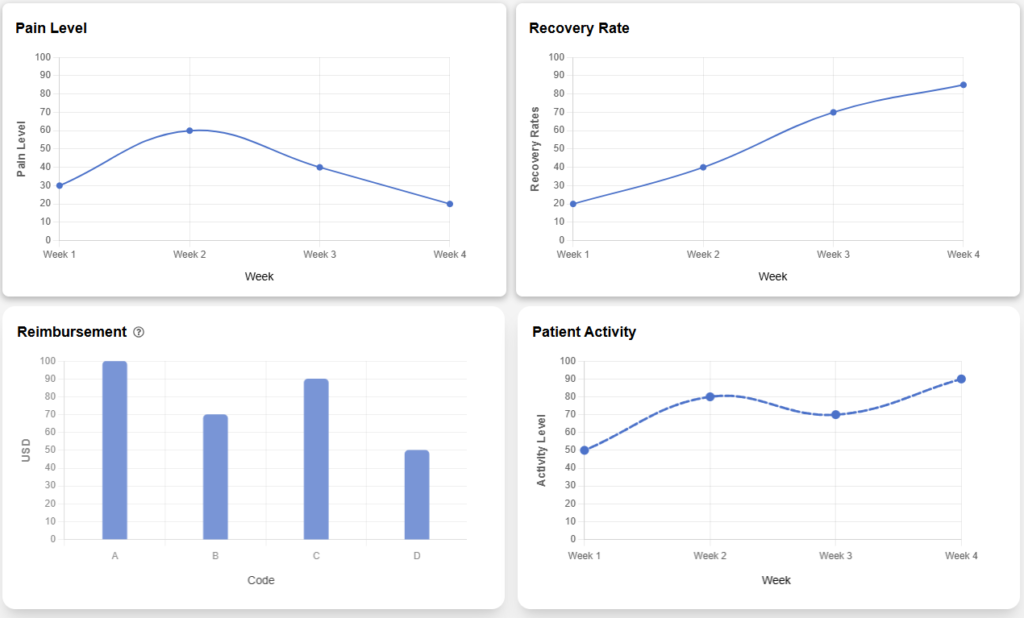
- Pain Level
Displays changes in patient pain levels over time. - Recovery Rate
Shows improvement trends across sessions. - Reimbursement
Represents financial or billing-related data. - Patient Activity
Tracks patient engagement or activity levels over time.
These charts help in analyzing treatment effectiveness and patient response.
Summary #
The Patient Overview page acts as a comprehensive dashboard for managing patient information. Initially, users are required to complete essential details through provided forms. Once completed, the page provides detailed insights, session tracking, and tools for managing patient care effectively.